
INSTALLATION GUIDES / PRE-BUILT HEADLIGHTS
Pre-Built Headlight Installation & Setup Guide
Our Pre-Builts arrive fully assembled with minimal wiring required. Skip the work of opening, modifying, and resealing your existing headlights—just install the assemblies and connect the supplied wiring for your setup.
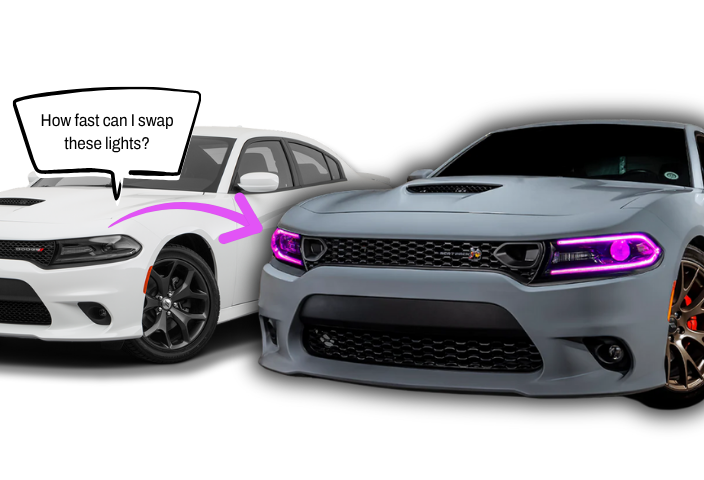
How do you set up pre-built headlights?
Identify the controller and options in your build, connect the relay harness and regulator, then connect the Flow Series lighting and any optional Demon Eyes or BlueGhozt signal inputs. Configure the correct app and test all lighting functions before finishing vehicle-specific reassembly.
Guide by Lighting Trendz · Updated October 27, 2026
1. Identify Your Setup
Pre-built headlights arrive assembled, but installation still includes vehicle-specific headlight removal, mounting, power connections, and controller setup. Check your order for Flow Series, optional Demon Eyes, and your controller model.
Follow the instructions supplied with your vehicle and build for replacing and aiming the headlights. This guide covers the accessory-lighting connections shown below.
Keep power disconnected while making connections. Match connector labels and polarity, and route wiring away from heat, moving parts, and sharp edges. If your hardware differs from these photos, contact us before connecting it.
2. Connect the Relay Harness
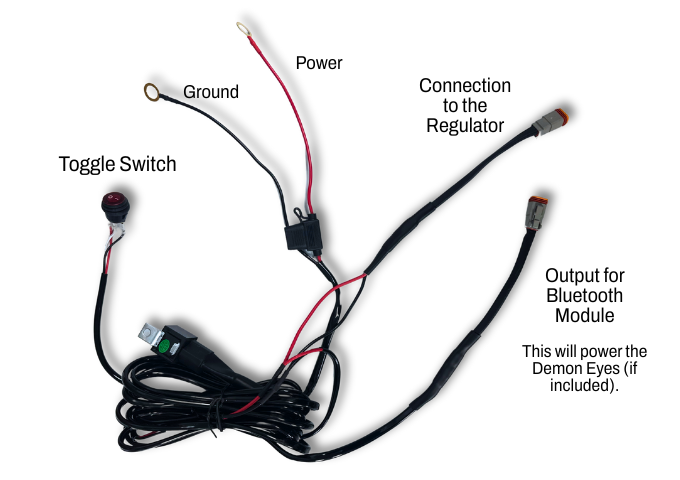
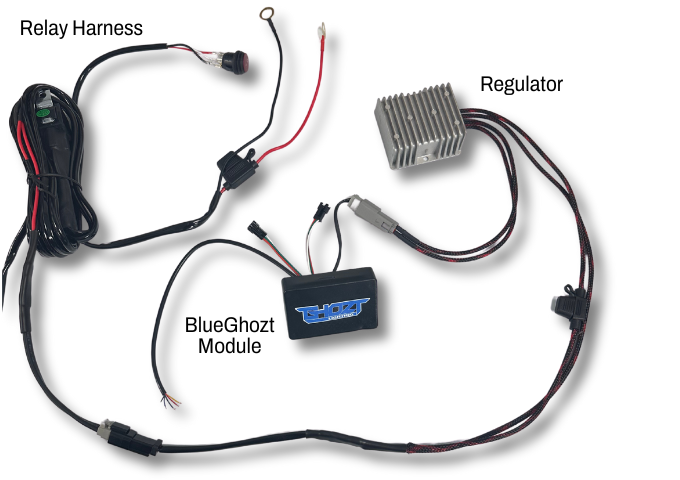
Locate the long relay harness with the switch. Connect its power and ground leads as labeled, using the power-source requirements supplied with your build.
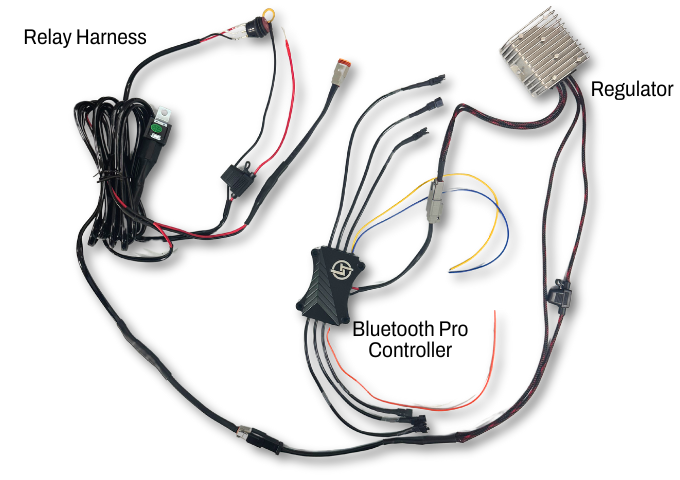
- Connect one relay-harness output to the regulator—the silver metal box. The regulator side with the inline fuse connects to the relay-harness output.
- The regulator’s other end connects to the Flow Series Bluetooth module or BlueGhozt.
- If Demon Eyes are included, the remaining relay-harness output connects to their RGBW Bluetooth controller.
Keep the regulator in the circuit for the Flow Series lighting. Do not bypass it or apply vehicle power directly to the regulated LED outputs.
3. Set Up Demon Eyes (If Included)
Skip this section if your build does not include Demon Eyes.
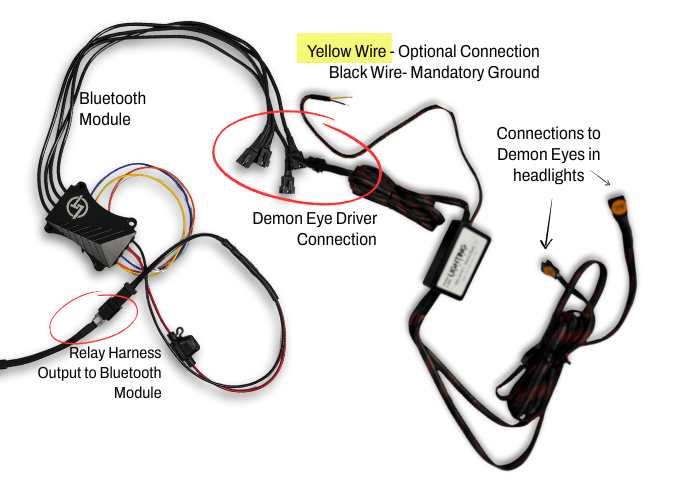
- Connect the RGBW Bluetooth controller to the Demon Eye driver box.
- Connect the headlights’ 5-pin plugs to the matching 5-pin connections on the driver box.
- For the driver box shown, the black wire is ground. The yellow wire is an optional 12V low-beam shutoff trigger: when connected to the appropriate low-beam signal, the Demon Eyes switch off when the low beams turn on.
Confirm the wire labels and the vehicle’s low-beam circuit before making the trigger connection. Use MotoAuto for the RGBW Bluetooth Pro controller shown.
4. Connect Flow Series Lighting
Connect the 3-pin Flow Series lighting plugs to the Flow Series Bluetooth controller or BlueGhozt supplied with your build. Use the supplied compatible 2-to-1 splitters where additional connections are needed.
The regulator supplies this lighting system. Keep the regulated power path intact and follow your controller’s labels.
The Bluetooth Pro controller shown uses MotoAuto. A BlueGhozt setup uses the BlueGhozt app. Identify your controller before downloading an app.
5. Connect BlueGhozt (If Included)
Connect the regulator to the BlueGhozt module, then connect the lighting to its 3-pin outputs. Keep the left and right lighting connected to the corresponding outputs.
The signal leads shown below are for the BlueGhozt harness pictured in this guide. Verify the labels and documentation for your exact module before extending or connecting them to the vehicle’s OEM wiring.
- Red: brake signal input
- Yellow: parking/running-light signal input
- Blue: left turn signal input
- Black: right turn signal input
- Green: show-mode trigger
The black signal lead in this reference is a right-turn input. Do not treat it as ground based on wire color. Follow the module’s labeled power and ground connections separately.
6. Configure & Test
After checking every connection, restore power and use the app for your controller. Connect to the controller inside the app and test the lighting before completing reassembly.
- Check the headlights’ low beams and high beams.
- Test Flow Series colors and effects.
- If fitted, test Demon Eyes and their low-beam shutoff trigger.
- For BlueGhozt, verify left/right output assignment and each connected vehicle signal.
- Secure the harnesses, confirm headlight mounting and aim using vehicle-specific guidance, and check all functions again.
Troubleshooting
Accessory lighting does not turn on
Disconnect power, then check the relay harness switch, fuse, power/ground connections, regulator path, and matching plugs. Keep factory headlight connections separate from accessory-lighting diagnosis.
Only one side or one feature works
With power off, inspect the affected output, splitter, and connector. For BlueGhozt, confirm left/right output assignments and the matching signal inputs.
The app cannot find the controller
Confirm power and phone Bluetooth access. Use MotoAuto for the Bluetooth Pro controllers shown, or the BlueGhozt app for BlueGhozt. Follow the instructions for any other controller model.
Demon Eyes do not shut off with low beams
Check the optional yellow shutoff trigger against the driver-box instructions and the vehicle’s actual low-beam signal. Contact support if the circuit or connection is uncertain.
Common Questions
Are pre-built headlights ready to install?
The headlights arrive assembled, but fitting the housings and connecting the supplied harnesses are still required. The work varies by vehicle and selected options.
Which app should I use?
The Bluetooth Pro controllers shown use MotoAuto. BlueGhozt uses the BlueGhozt app. Check your exact controller and supplied instructions first.
Do I need the Demon Eye instructions?
Only if Demon Eyes were selected with your build. Their RGBW controller and driver box are separate from the Flow Series lighting connections.
Where can I check warranty coverage?
Review the warranty information and the terms supplied with your order or product listing. Contact Lighting Trendz if you need help confirming coverage for your build.
Installation & Warranty Support
Have your order details, controller model, and connection photos ready when contacting our team. Warranty coverage follows the terms supplied with your purchase and the applicable policy.